Pages 37–48 · Markdown
Chapter 6 – Expressions
Mathematical operations +, - , * , /, MOD
You have already seen some of the ways in which the ZX Spectrum Next can calculate with numbers. It can perform the four arithmetic operations +, -, * and / (remember that * is used for multiplication, and / is used for division), and it can find the value of a variable, given its name. The example:
tax=sum*20/100
gives just a hint of the very important fact that these calculations can be combined. Such a combination, like sum*20/100, is called an expression; so an expression is just a shorthand way of telling the computer to do several calculations, one after the other. In our example, the expression sum*20/100 means look up the value of the variable called "sum", multiply it by 20, and divide the result by 100.
There's also one more mathematical operation, the modulo which returns the remainder of a division. It is used in the same way as the division operator but is denoted instead by MOD. As an example the direct commands:
PRINT %17 MOD 6
PRINT 17 MOD 6
will both return 5 which is the remainder of the division of 17 by 6; note the percent symbol (%) that prefixes 17 in the first example: this is what defines it as an Integer Expression – We will look at this in a little bit.
Order of mathematical calculations
It's important here to underline the order in which mathematical expressions are evaluated: For floating point operations, multiplications and divisions are done first. They have higher priority than addition and subtraction. Relative to each other, multiplication and division have the same priority, which means that the multiplications and divisions are done in order from left to right. When they are dealt with, the additions and subtractions come next; these again have the same priority as each other, so we do them in order from left to right. This is very important because one can arrive to a wrong result if they forget said order.
Although all you really need to know is whether one operation has a higher or lower priority than another, the computer does this by having a number between 1 and 16 to represent the priority of each operation: * and / have priority 8, and + and - have priority 6.
This order of calculation is absolutely rigid, but you can circumvent it by using parentheses; anything in parentheses is evaluated first and then treated as a single number.
Notes
Specifically for Integer Expressions, the order of calculations is strictly left-to-right with the exception of the use of parentheses. In the case of multiple sets of parentheses, their contents are also evaluated from left-to-right
Bitwise, relational and logical operators
Within every kind of expression there's a number of bitwise, relational and logical operations that can be performed other than simple mathematical operations. Specifically for numbers these can be performed on floating point or integer numbers. While the operators are the same, there are subtle (and some not so subtle) differences in the way things work and we'll attempt to show these below.
In addition to the above there's a unary operator which follows:
Unary/Bitwise NOT (!)
As we discussed in the previous section NextBASIC provides one additional unary operator, which is an operator that requires one number alone. This is:
| ! | bitwise NOT |
Bitwise NOT inverts the bits of said number from 0 to 1 and vice-versa.
PRINT %!15 |
returns 65520 as 15 gets inverted to become 65520 |
(0000 0000 0000 1111) (1111 1111 1111 0000) |
PRINT %!43690 |
returns 21845 as 43690 gets inverted to become 21845 |
(1010 1010 1010 1010) (0101 0101 0101 0101) |
this seems pretty straightforward correct? Wrong because look at what happens once you omit the % symbol and the expression is no longer an integer one:
PRINT !43690 |
returns -43691 as 43690 gets inverted together with its sign bit to become -43691 |
(1010 1010 1010 1010) (0101 0101 0101 0101) |
what happened can be found in a simple phrase: two's complement which we'll examine further below. Until then however run the following examples:
10 PRINT !32767
20 PRINT %! 32767
30 PRINT % SGN{!32767}
if you feel a bit overwhelmed, not to worry; soon all will be very clear!
Bitwise operators <<, >>, &, |, ↑, ↑|
NextBASIC, can also perform 5 bitwise operations (that is operations on the individual binary digits that make up a number) on variables and expressions. These are:
| x << y | Shift each bit of x, y places left |
| x >> y | Shift each bit of x, y places right |
| x & y | Bitwise AND between x and y |
| x | y | Bitwise OR between x and y |
| x ↑ y | Bitwise XOR between x and y (Deprecated, use the next one) |
| x ↑| y | Bitwise XOR between x and y (Synonym with the previous) |
More information on Bitwise operations together with examples (as binary examples are much easier to understand) can be found in Integer Expressions below. The operators however work on both (except for the deprecated one) Integer and Floating Point expressions
Logical operators
Standard logical operators can be used within integer expressions if prefixed by a %. These are used in the same manner as their floating point counterparts.
| x AND y | Logical AND (gives 0 if y is zero, x if y is non-zero) |
| x OR y | Logical OR (gives x if y is zero, 1 if y is non-zero) |
| NOT n | Logical NOT (zero -> 1, non-zero -> 0) |
Relational operators <, >, = ,<=, >=, <>
| < | less than |
| > | greater than |
| = | equal to |
| <= | less than or equal to |
| >= | greater than or equal to |
| <> | not equal to |
Whereas you use them in their integer or floating point guise, the six relational operators, work very much in the same way. Like their floating point counterpart, they too produce a result of 0 for false and 1 for true.
Expressions
Expressions are useful because, whenever the computer is expecting a number from you, you can give it an expression instead and it will work out the answer. The exceptions to this rule are so few that they will be stated explicitly in every case.
You can add together as many strings (or string variables) as you like in a single expression, and if you want, you can even use parentheses. In the case of Integer Expressions there are some further considerations and limitations as well as additional capabilities (ie. Bitwise operations and modulus) so they warrant a separate examination below.
Variable names and limitations
We really ought to tell you what you can and cannot use as the names of variables. As we have already said in Chapter 1, the name of a string variable has to be followed by $; otherwise they can be treated in the same way naming wise: They can use any letters or digits as long as the first one is a letter. You can put spaces in as well to make it easier to read, but they won't count as part of the name. Also, it doesn't make any difference to the name whether you type it in capitals or lowercase letters. There are some restrictions about variable names which are the same as commands (keywords), however, in general, if the variable contains a NextBASIC keyword in it (with spaces either side) then it won't be accepted.
Integer variables are a bit different as they can only be a single letter A to Z (or lower case a to z) and they're assigned in an expression that begins with a % eg:
%a=10
Additionally, all integer values are treated by default as unsigned 16-bit values except when you use the special SGN {...} keyword (in which case they're signed 16-bit – see the relevant section at the end of this chapter for details).
All operations are performed within the confines of 16 bits, meaning all results are truncated to a max value of 65535, with no checks for overflow/underflow (except division by zero, which results in error 6, Number too big). Integer variables are pre-allocated and stored in a fixed location outside the normal memory used by NextBASIC. This gives a significant speed advantage as well as memory savings compared to the use of ordinary numeric variables.
Further of note is that if a line contains an integer expression, ALL variables and arrays contained within the same expression are integer ones. In cases where there is more than one integer expression within a line, each needs to be preceded with a %.
Here are some examples of the names of variables that are allowed:
| x | |
| t42 | |
| ItIsWithAHeavyHeartThatIMustSay | |
| nowWeAreSix |
| nOWWeaReSiX | (these last two names are considered the same, and refer to the same variable) |
The following are not allowed to be the names of variables:
| pi | PI is a keyword |
| 2001 | (it begins with a digit) |
| A new variable | (contains the separated keyword NEW) |
| 3 bears | (begins with a digit) |
| M*A*S*H | (* is not a letter nor a digit) |
| Fotherington-Thomas | (- is not a letter nor a digit) |
Integer variables can only use the letters A to Z (again, case does not matter, so a to z are also acceptable) – as you can see below, for a variable to be treated as integer, a % symbol somewhere in the same expression must precede it.
Scientific notation
Numerical expressions can be represented by a number and exponent. Try the following to prove the point:
PRINT 2.34e0
PRINT 2.34e1
PRINT 2.34e2
and so on up to:
PRINT 2.34e15
You will see that after a while the computer also starts using scientific notation. Similarly, try:
PRINT 2.34e-1
PRINT 2.34e-2
and so on.
PRINT gives only eight significant digits of a number. Try:
PRINT 4294967295,4294967295-429e7
This proves that the computer can hold the digits of 4294967295, even though it is not prepared to display them all at once.
The ZX Spectrum Next, unless integer variables are expressly used (see above), uses floating point arithmetic, which means that it keeps separate the digits of a number (its mantissa) and the position of the point (the exponent). This is not always exact, even for whole numbers.
Type:
PRINT 1e10+1-1e10,1e10-1e10+1
Numbers are held to about nine and a half digits accuracy, so 1e10 is too big to be held exactly right. The inaccuracy (actually about 2) is more than 1, so the numbers 1e10 and 1e10+1 appear to the computer to be equal. For an even more peculiar example, type:
PRINT 5e9+1-5e9
Here the inaccuracy in 5e9 is only about 1, and the 1 to be added on in fact gets rounded up to 2. The numbers 5e9+1 and 5e9+2 appear to the computer to be equal.
The largest integer (whole number) that can be held completely accurately is 1 less than 32 2s multiplied together (or 4,294,967,295) – in other words: 2³²-1
The string "" with no characters at all is called the empty or null string. Remember that spaces are significant and an empty string is not the same as one containing nothing but spaces. Try:
PRINT "Have you finished "Finne
gans Wake" yet?"
When you press ENTER, you will get the flashing red cursor mark that shows there is a mistake somewhere in the line. When the computer finds the double quotes at the beginning of "Finnegans Wake", it imagines that these mark the end of the string "Have you finished ", and it then can't work out what Finnegans Wake means.
There is a special device to get over this; whenever you want to write a string quote symbol in the middle of a string, you must write it twice, like this:
PRINT "Have you finished ""Finn
egans Wake"" yet?"
As you can see from what is printed on the screen, each double quote is only really there once; you just have to type it twice to get it recognised.
Decimal, Binary and Hexadecimal numbers
Number literals in NextBASIC can be expressed in Decimal (default), Binary (preceded by @) and Hexadecimal (preceded by $). In the case of integer only literals, the same rule as any with other integer expression applies to binary and hexadecimal literals; they need to be preceded by %, once per expression. Consider these examples:
PRINT %$E3, @11100011

PRINT $E3, %@11100011

PRINT %$E3+@11100011

PRINT $E3+%@11100011
The first example prints an integer and then a floating point number autoconverted from hexadecimal and binary respectively. The same thing happens in the second case but with the first value being a floating point one and the second an integer as again there are two separate expressions following the PRINT keyword. The third example is also valid as it contains a properly marked (preceded by %) integer expression. The addition of the hexadecimal and binary numbers is a single integer expression as the % preceding the addition marked both numbers as integer (and therefore it doesn't need a second %). The fourth example however is NOT valid as it's trying to add a floating point number with an integer number and this expression will fail.
In the case of floating point literals, both hexadecimal and binary numbers can have fractional parts. For example:
BIN 1.1 | is the same as 1.5 (decimal) |
@10.01 | is the same as 2.25 (decimal) |
$64.c | is the same as 100.75 (decimal) |
More about Integer Expressions and Variables
As previously mentioned, the main two reasons for the use of Integer Variables, Arrays and Expressions, is memory efficiency and speed of execution.
Integer variables can be used in assignments (using keywords INPUT, LET, READ, FOR, ENDPROC and PROC) by preceding their name with a % symbol.
Normally, it is not possible to access standard numeric variables or functions within an integer expression, or to access integer variables or operations within a standard numeric expression. In the following program:
 10 a=3
 20 b=4
 30 %a=2
 40 %b=5
 50 c=%a*b
 60 d=%b * a
 70 PRINT c,d
 80 %b=b
 90 c=%a*b
100 PRINT c,d
you might expect line 70 to produce 8 and 15. Instead it returns 10 and 10 as the % in lines 50 and 60 indicates that the entire expression is an integer expression, and all the variables named in each line, are integer variables even though each name is not directly preceded by a % and only line 100 produces a different output; 8 and 10 respectively.
It is, as apparent from the above example, possible therefore, to assign an integer expression to a standard normal numeric variable, or vice-versa, and the value will be converted appropriately. This automatic conversion is called casting and it's best illustrated in line 80 above as well as the examples below which are all valid assignments:
%A=2*PI*radius
assigns a truncated floating point calculation to integer variable A
%B=%B+(A(7)<<3)
shifts integer array element A(7) left 3 bits and adds it to integer variable B
addr=%x(1)<<8+x(0)
calculates standard numeric variable addr from low and high bytes in integer array X elements 0 and 1.
As we saw earlier it's not normally possible to use a floating point expression within an integer expression. But what if we needed to do so? Consider the following example:
%a,%b,%c=1:PRINT %a+PI+b+c
Looks simple enough, doesn't it? All we expect to happen is for casting to take over and use just the integer portion of the value of PI, but it doesn't work that way. Instead the cursor flashes next to PI and the NextBASIC editor complains. To address this, NextBASIC includes the special INT {fp_expression} keyword (do not omit the braces) which converts (casts) any floating point expression fp_expression into an integer. So even if the example above wouldn't work, a small change:
%a,%b,%c=1:PRINT %a+INT { PI }+b+c
and it works happily! As a matter of fact INT {...} will convert any expression that produces a floating point value. Here are some examples:
test = 3.45: PRINT % INT {test}
alpha = 0: beta = 1: %a = %@0111 + INT
{alpha OR beta)}

%x=%x+INT{(INKEY$="P" OR
INKEY$="p")}-INT{(INKEY$="O" OR
INKEY$="o")}
Despite the presence of INT {...}, in order to avoid confusion and unexpected results that can make debugging1 very hard, it would be a good practice to not use one or more single letter standard variables when there's a possibility of a similarly named variable existing in its integer form and instead use a more easily identifiable name.
We discussed about using floating point literals and/or expressions within the integer expressions evaluator; what happens when we want to do the opposite, to use in other words an integer expression as a sub-expression within the standard expression evaluator?
As it happens, this is possible as long as it is started after any opening parenthesis or separating comma. For example:
x$=STR$(%a, %b, 5)
x=apples*pears+(%x(3))
There is a notable exception to that requirement. For the new BANK... functions (See Chapter 23 for details about BANK) in the standard expression evaluator, the bank number can be considered to be implicitly within parentheses, so it may be specified using an integer expression directly as follows:
x=2*PI*BANK %b PEEK myaddress
As we saw from the unary ! operator, bitwise operations on variables and arrays are pretty straightforward and involve manipulations of the individual bits of any number as represented in the ZX Spectrum Next's memory.
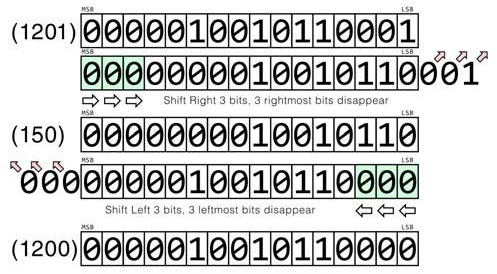
Shifting left or right involves moving the binary content of a variable x places (bits) to the left or right, padding from the right or left respectively with as many 0s as the places we shift the number for.
To illustrate bit shifting we can do the following example: Let's assign the decimal number 1201 first to an integer variable A, then manipulate its bits by shifting them left and right and printing the result so we can compare:
100 %A=1201
110 %A>>=3
120 %A<<=3
130 PRINT %A
This will return 1200 when run. To demonstrate what went on we could illustrate the expressions in two consecutive PRINT statements:
100 PRINT %1201>>3
110 PRINT %150<<3
1 Debugging is the programming process where you first attempt to ascertain if a program has errors, then to identify these errors and finally to remove them.
Once we see how the numbers are stored in memory as a series of bits we can easily understand what happened:
| MSB | LSB | |||||||||||||||||||||
| (1201) | 0 | 0 | 0 | 0 | 0 | 1 | 0 | 0 | 1 | 0 | 1 | 1 | 0 | 0 | 0 | 1 | ||||||
|---|---|---|---|---|---|---|---|---|---|---|---|---|---|---|---|---|---|---|---|---|---|---|
| MSB | LSB | ⬀ | ⬀ | ⬀ | ||||||||||||||||||
| colour: pale green 0 | colour: pale green 0 | colour: pale green 0 | 0 | 0 | 0 | 0 | 0 | 1 | 0 | 0 | 1 | 0 | 1 | 1 | 0 | 0 | 0 | 1 | ||||
| ⇨ | ⇨ | ⇨ | Shift Right 3 bits, 3 rightmost bits disappear | |||||||||||||||||||
| MSB | LSB | |||||||||||||||||||||
| (150) | 0 | 0 | 0 | 0 | 0 | 0 | 0 | 0 | 1 | 0 | 0 | 1 | 0 | 1 | 1 | 0 | ||||||
| ⬁ | ⬁ | ⬁ | MSB | LSB | ||||||||||||||||||
| 0 | 0 | 0 | 0 | 0 | 0 | 0 | 0 | 1 | 0 | 0 | 1 | 0 | 1 | 1 | 0 | colour: pale green 0 | colour: pale green 0 | colour: pale green 0 | ||||
| Shift Left 3 bits, 3 leftmost bits disappear | ⇦ | ⇦ | ⇦ | |||||||||||||||||||
| MSB | LSB | |||||||||||||||||||||
| (1200) | 0 | 0 | 0 | 0 | 0 | 1 | 0 | 0 | 1 | 0 | 1 | 1 | 0 | 0 | 0 | 0 | ||||||
Fig. 4 - Bit shifting
What happens however if we do the same to a floating point variable? Let's rewrite the above example:
100 A=1201
110 A>>=3
120 A<<=3
130 PRINT A
which prints the same number as what we have assigned in line 100! Why the difference? We will need to recruit a function from a little further down this manual to help us better understand. Just type the following:
100 A=1201: PRINT
    A,STR$(A,2,4)
110 A>>=3: PRINT A,STR$(A,2,4)
120 A<<=3:PRINT A,STR$(A,2,4)
The whole trick is in the fractional part of the number we don't normally see because it's 0. By shifting 3 places to the right, we occupied 3 of the fractional places and therefore when we shifted back to the left the number wasn't truncated from the right side of its binary representation!
The remaining bitwise operations are very straightforward. Bitwise AND (&) is used to quickly determine if a bit inside a number is set to 1 or not. The first operand is the number we want to check and the second one is called the bitmask which is the number we check against. Consider these two examples:
PRINT %@10101010 & @01010101
PRINT @11100011 & @10
First example will return 0 while the second 2. The reason for this, is that the numbers in the first example don't have coinciding 1 bits in the same positions while on the second example the second bit will be 1 and as a consequence the bits that match will be the first and second which make binary 10 which in decimal equals 2. To illustrate further:
| 170 | 10101010 | |
| AND 85 | (Bitmask) | 01010101 |
| Result | 00000000 |
As you can see, no bit set to 1 in any position of the two numbers matches each other, therefore the result returned is 0 whereas in the second example:
| 227 | 11100011 | |
| AND 2 | (Bitmask) | 00000010 |
| Result | 00000010 |
Bit 2 of the mask, matches bit 2 of the number and it is 1 therefore 10 is returned (binary equivalent of decimal 2)
Bitwise OR (|) will return 1 in any position if at least one bit of the two numbers is the same position is 1 and 0 if both are set to 0. For example:
PRINT %@10101010 | @01101011
will return 235 as only bits in positions 3 and 5 in both numbers are set to 0 making the resulting number 11101011 in binary form (or 235 in decimal). To better illustrate:
| 170 | 10101010 | |
| OR 107 | (Bitmask) | 01101011 |
| Result | 11101011 |
Finally, bitwise XOR (↑|) will only return 1 in any position if either bit is set to 1 but not both. So two 0s and two 1s, both return 0 in a position. Using the same numbers as in the previous example:
PRINT %@10101010 ↑| @01101011
will return 193 or binary 1100001 since:
| 170 | 10101010 | |
| XOR 107 | (Bitmask) | 01101011 |
| Result | 11000001 |
Bitwise expressions are uniquely helpful in determining the condition of flags in several of the ZX Spectrum Next ports (as we will see in Chapter 22), since these take the form of individual bits in a binary number and testing those with regular arithmetic can be cumbersome and slow.
Signed vs Unsigned Integer Expressions
As you saw in Chapter 1 and in the introduction to this chapter, integer variables in NextBASIC are fixed to 16-bits wide unsigned, which means that they can display only positive integers from 0 to 65535. To illustrate approximately what that means, try the following:
PRINT %-64448
The computer will respond with: 1088. Keep this result in mind for a moment and then try:
PRINT %-32448
This time the computer will display the number 33088 on screen. Are you confused yet? Maybe seeing the numbers in binary will help. Let's start with the first response of 1088 and we'll work backwards.
| Decimal | Binary | |
|---|---|---|
| 1088 | 0000 0100 0100 0000 | |
| -64448 | 1 0000 0100 0100 0000 | |
| 64447 | 1111 1011 1011 1111 | Don't mind this for now! |
Aha! Let's now see the second response:
| Decimal | Binary | |
|---|---|---|
| 33088 | 1000 0001 0100 0000 | |
| -32448 | 1000 0001 0100 0000 | |
| 32447 | 0111 1110 1011 1111 | Don't mind this for now! |
Do you now see the pattern? Let's do one more thing that will illustrate how the computer stores the data internally (We'll now jump a bit ahead and borrow a bit from Chapter 24).
Type the following program:
10 DPOKE 30000, %-32448
20 PRINT % DPEEK 30000: PRINT
   PEEK 30000, PEEK 30001
Line 10 enters the entire 16 bits of the value -32448 into memory locations 30000 and 30001, while line 20 first prints what's stored in locations 30000 and 30001 as an unsigned integer and then the individual bytes that make up that value. You will get:
33088
64          129
The second line just translates to 0100 0000 and 1000 0001 in binary which if we consider that the smallest portion of the 16 bit number was stored first we can rebuild it as: (129 x 256) + 64 which equals... 33088!
Now let's first give some background so we can tie all this information together: A signed integer is one with either a plus or minus sign in front indicated by one bit in the beginning of the number. Since we have 16 bits assigned to integers and taking the one bit out for the sign, that would leave us 15 bits to display a number with a sign (whereas this sign is positive or negative). Thus a 16 bit signed integer will be able to display numbers to the range of -32768 to +32767. This obviously, also means that unsigned integers can have a value twice as high as signed integers. The most common way to represent signed numbers (and the one NextBASIC uses) is to use two's complement if you recall from earlier in the chapter which works as follows:
On any given binary number representing a decimal x, its two's complement is a binary number constituted by the first number with inverted digits from 0 to 1 and vice-versa and then adding 1. The resulting binary number represents decimal -x. For example:
For decimal number 2 (represented in 8 bit binary as 00000010), -2 would be 00000010's two's complement. To calculate it we'd have to invert the digits making it 11111101 and then add 1 which would make the resulting number 11111110. The very first bit signifies the sign (0 for positive and 1 for negative). The benefit of using two's complement is that standard arithmetic works properly and any numbers that exceed the bit-width of the numbers get discarded.
After discussing this, the pattern emerging from the previous examples becomes clear!
What happened in the examples above is that NextBASIC, in the first example (as mentioned in the beginning of this chapter) truncated the sign bit as it was located in the 17th bit and left us with only the 16 bit unsigned integers of the negative number which is the same as the 16 bit equivalent of the number we fed it. It then tried to interpret the sign bit but since regular integers are unsigned it just returned the positive integer that's represented by the number. For the computer therefore in both cases, what we fed it and what it printed were the exact same number
A further illustration of the above can be shown by using the unary not operator (!) which as we discussed earlier in the chapter, inverts the number. Let's see:
PRINT %!1088, %!33088
The computer returns:
64447 32447
And if we add these together by doing:
PRINT %1088 + 64447, %33088 + 32447
we will get in both cases 65535!
Integer arithmetic is extremely fast, so we should have at least a way of representing signed integers in NextBASIC for both fast calculations as well as special cases, so NextBASIC does provide the way to deal with these numbers with the special SGN {...} keyword. What this does is, to treat any integer expression enclosed within it as a signed integer value (ranging from -32768 to 32767). All expressions enclosed within an SGN {...} block are called signed integer expressions. Signed integer expressions use all the same operators and functions as standard unsigned ones, but the arithmetic operators (+, -, *, /, MOD) and the relational operators (<, <=, >, >=, =, <>) treat their operands as signed values in the range -32768 to 32767. The other operators and functions can be used within a signed integer expression, but still treat their operands as unsigned.
Based on how two's complement works, theoretically you can work with just the two's complement numbers (which if regarded as unsigned integers, are also positive integers) but in these cases that would be very cumbersome to have to remember the equivalents instead of the actual number we want to involve in our calculation.
If say we need to do 1 + (-32300) - (-1) what would be easier to implement?
PRINT % SGN {1}+ SGN {-32300}- SGN {-1}
or
PRINT %1+33236-65535
There are obvious benefits on usability; and also non obvious benefits such as in the following example:
10 %x=0
20 PRINT %(x-1)>0,
   %SGN{(x-1)>0}
which will result in:
1 0
on screen as in unsigned expressions 0-1 equals 65535 (see also the previous example) which is obviously larger than 0 while in signed expressions 0-1 equals -1 which is not larger than 0!
SGN {...}, also affects multiplication, division and MODulo operations. Consider this example (which also contains a pitfall!):
10 PRINT %10*-1
20 PRINT %10* SGN {-1}
30 PRINT % SGN {10* SGN {-1}}
40 PRINT % SGN {10*-1}
If you RUN this, you will see the following on screen:
65526
65526
-10
-10
What happened here is that -1 is as we discussed 65535 for unsigned integers. So on line 10, the computer multiplied 10 * 65535 which resulted to 655350 but as an integer number, this is larger than 16 bits. Then it gets truncated to 16 bits which results into 65526 which is obviously wrong as a result. Moving to line 20 we hit the first pitfall discussed in the opening statement: The result of SGN {-1} which is -1 gets converted into an unsigned integer itself so you end up with the exact same situation as with line 10; a multiplication of 10 with 65535. The pitfall therefore here is that SGN{...} must apply to the entirety of the integer expression, so if there are other non-signed expressions they must be taken into consideration when writing each statement! Line 30 produces finally what we were aiming for, but that also happens with line 40! So both are correct but which is the right way to do it?
The answer to that question lies with what we discussed above regarding the "pitfall" with integer expressions. The subexpression SGN {-1} will get evaluated to whatever is in the enclosing expression. So if the enclosing expression is an unsigned expression, the result of the subexpression will also become converted to unsigned; ergo since the entirety of the integer expression of line 30 is a signed expression, the signed subexpression is unnecessary and may even delay execution (especially in very complex calculations). The right way therefore to do it, is the way defined in line 40. Obviously this also applied to our initial example which is best written as:
PRINT % SGN {1 -32300- (-1)}
which is much neater to write AND read!
Exercises
- Using the discussion about the unary ! operator and 16 bit binary numbers, calculate and print on screen the two's complement for the signed 32 bit integer: 650323
ZX Spectrum Next User Manual, 3rd Edition (ISBN 978-1-5272-5496-1), written and illustrated by Phoebus R. Dokos. Copyright © 2020-2024 Phoebus Dokos / SpecNext Ltd. Licensed under CC BY-NC-SA 4.0. This is a transcription and can contain errors; check any doubt against the printed page.