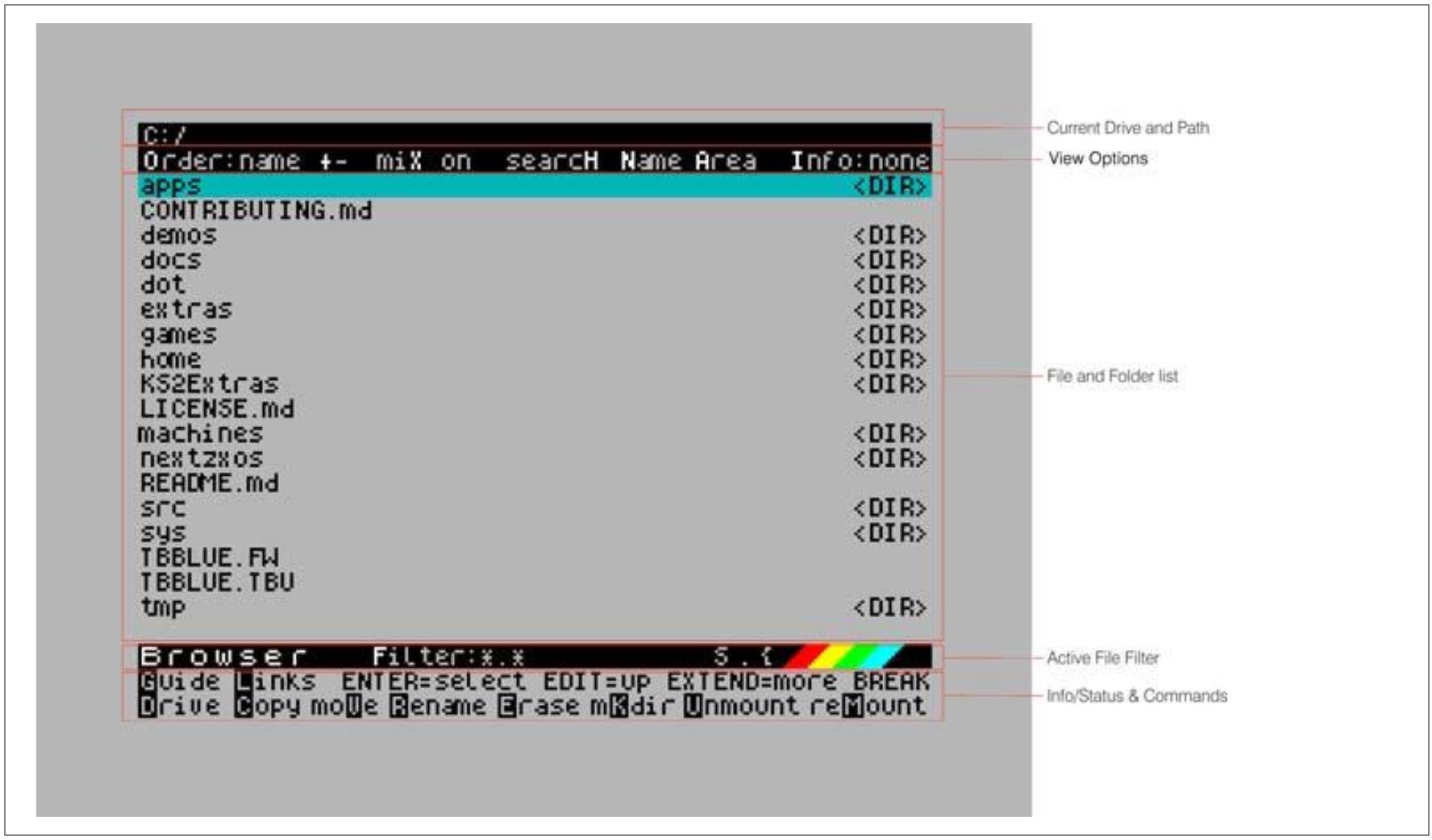
The Browser window consists of five separate areas, as seen in the figure below:
Current Drive and Path
C:/
View Options
Order:name +- miX on searcH Name Area Info:none
File and Folder list
apps                                          <DIR>
CONTRIBUTING.md
demos                                         <DIR>
docs                                          <DIR>
dot                                           <DIR>
extras                                        <DIR>
games                                         <DIR>
home                                          <DIR>
KS2Extras                                     <DIR>
LICENSE.md
machines                                      <DIR>
nextzxos                                      <DIR>
README.md
src                                           <DIR>
sys                                           <DIR>
TBBLUE.FW
TBBLUE.TBU
tmp                                           <DIR>
Active File Filter
Browser Filter:*.* S.{
Info/Status & Commands
Guide  Links  ENTER=select EDIT=up EXTEND=more BREAK
Drive Copy moVe Rename Erase mKdir Unmount reMount
Fig. 22 – Browser window areas and their function
On the top of the Browser window, is the Current Drive and Path Area. As you navigate your drives, it changes to reflect the current drive and folder you're in. This in effect, is the same as giving the PWD command when in NextBASIC.
Right below that are the View Options which control the way the list will appear, from what info it will show to how the list is sorted together with a search control
Immediately after, is the File and Folder List Area; it contains all files and folders at the point you're located as reflected by the Current Drive and Path Area at the top in combination with the Active File Filter Area that's right below it (more about that in a little bit) shown in pages of 19 items at a time. You navigate the file and folder list with the cursor keys, ENTER and EDIT, a joystick set as cursor, or the first Kempston or Mega drive joystick regardless of what port (Left or Right) it's set to. Immediately below the File and Folder List Area, is the Active File Filter Area with which, you can reduce the file list to whatever types (including folders which have essentially a blank type) you wish to see (according to a filter set by wildcards) and finally, the bottom two lines is the Info/Status and Commands Area.
Using the Browser
The Browser is extremely easy to use; all it takes is a few keystrokes to accomplish most tasks. Controls are listed in the next table:
| Key | Description |
|---|---|
| ⇦ | Moves one page up or to the topmost item if you're on the first page |
| ⇨ | Moves one page down or to the last item if you are on the last page |
| ⇧ | Move up one item |
| ⇩ | Move down one item |
| ENTER | If it's a folder, change to that folder. If it's a file attempt to execute it |
| SYMBOL SHIFT + ENTER | Attempt the secondary action stored in browser.cfg for the file type |
| EDIT | Move up one folder |
Table 17 – Browser controls
while commands are the following:
ZX Spectrum Next User Manual, 3rd Edition (ISBN 978-1-5272-5496-1), written and illustrated by Phoebus R. Dokos. Copyright © 2020-2024 Phoebus Dokos / SpecNext Ltd. Licensed under CC BY-NC-SA 4.0. This is a transcription and can contain errors; check any doubt against the printed page.