Appendix D – The Calculator
The ZX Spectrum Next can be used as a full function calculator.
Selecting the calculator
To use the calculator, call up the Startup Menu with EDIT and select the Calculator option. (If you don't know how to select a menu option, refer back to Quick Start.)
The calculator may be selected as soon as the ZX Spectrum Next is switched on.
Alternatively, if you are working on a NextBASIC program, you may select the calculator by choosing the Exit option from the Edit/Options Menu (which returns you to the Startup Menu), at which point you can select the Calculator option. Note that any NextBASIC program which was being worked on (when you selected the calculator) will be remembered and restored when you exit from the calculator and return to NextBASIC.
Entering numbers
When you have selected the Calculator option, the screen will change to:
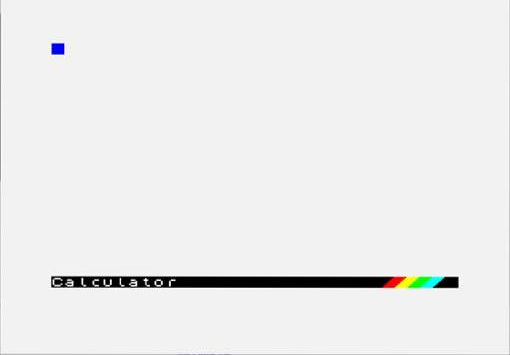
Calculator
Fig. 54 – Calculator Screen
and the ZX Spectrum Next's calculator is ready to accept your first entry. Type in:
6+4
As soon as you press ENTER, the answer 10 will appear on the next line. (Note that you don't type = as you would on a conventional calculator.)
Running total
You will see that the cursor is positioned to the right of the answer, which is a running total (like on a conventional calculator). This means that you can simply type in the next operation to be carried out on the running total (without having to type in a whole new calculation). So, with the cursor still positioned to the right of the 10 on the screen, type in:
/5
and the answer 2 appears.
ZX Spectrum Next User Manual, 3rd Edition (ISBN 978-1-5272-5496-1), written and illustrated by Phoebus R. Dokos. Copyright © 2020-2024 Phoebus Dokos / SpecNext Ltd. Licensed under CC BY-NC-SA 4.0. This is a transcription and can contain errors; check any doubt against the printed page.