Pages 303–306 · Markdown
Appendix D – The Calculator
The ZX Spectrum Next can be used as a full function calculator.
Selecting the calculator
To use the calculator, call up the Startup Menu with EDIT and select the Calculator option. (If you don't know how to select a menu option, refer back to Quick Start.)
The calculator may be selected as soon as the ZX Spectrum Next is switched on.
Alternatively, if you are working on a NextBASIC program, you may select the calculator by choosing the Exit option from the Edit/Options Menu (which returns you to the Startup Menu), at which point you can select the Calculator option. Note that any NextBASIC program which was being worked on (when you selected the calculator) will be remembered and restored when you exit from the calculator and return to NextBASIC.
Entering numbers
When you have selected the Calculator option, the screen will change to:
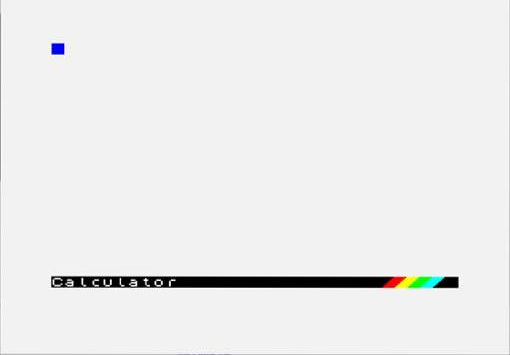
Calculator
Fig. 54 – Calculator Screen
and the ZX Spectrum Next's calculator is ready to accept your first entry. Type in:
6+4
As soon as you press ENTER, the answer 10 will appear on the next line. (Note that you don't type = as you would on a conventional calculator.)
Running total
You will see that the cursor is positioned to the right of the answer, which is a running total (like on a conventional calculator). This means that you can simply type in the next operation to be carried out on the running total (without having to type in a whole new calculation). So, with the cursor still positioned to the right of the 10 on the screen, type in:
/5
and the answer 2 appears.
Using built-in mathematical functions
The ZX Spectrum Next's calculator leverages the power of NextBASIC to provide more advanced functions to the user. For example, with the result of the previous operation in place, type in:
*PI
This produces the result 6.2831853 on the screen. The ZX Spectrum Next has used its built-in π function – all you had to do was type in PI. This applies to all the ZX Spectrum Next's mathematical functions. To demonstrate, type in:
*ATN 60
which will give you the result 9.7648943.
Editing the screen
To further enhance the calculator's flexibility, you may also edit the contents of the screen. To demonstrate, move the cursor (using the cursor left key) to the beginning of the line and then type in INT so that the line reads
INT 9.7648943
and as soon as ENTER is pressed, the answer 9 will appear. This also demonstrates that the ZX Spectrum Next doesn't have to perform a calculation in order to print the value of an expression. As another example, press ENTER and type:
1E6
which will return the value of that expression. Notice that before you typed in 1E6, you pressed ENTER on its own – this tells the ZX Spectrum Next that you are about to start a new calculation.
Assigning variables
One extremely useful feature of the ZX Spectrum Next's calculator is that it allows you to assign values to variables and then use them in subsequent calculations. This is achieved by using the LET statement (unlike NextBASIC the Calculator doesn't yet allow assignments without LET). To demonstrate, press ENTER and type in the following:
LET x=10
You must then press ENTER twice for the ZX Spectrum Next to accept the variable assignment. Now verify that the variable x is being used, by typing:
x+90
then
+x*x
If you are using the calculator whilst working on a NextBASIC program, then any variables used by the calculator should be chosen so that they do not conflict with those used by the program itself. Note that NextBASIC keywords are not allowed to be used as variable names.
User defined functions
Note that if you have set up any user defined functions (using the DEF FN statement) whilst working on a NextBASIC program, you will be able to invoke that function when using the calculator. To illustrate this point, return to NextBASIC and type in (for example):
9000 DEF FN c(n)=n*n*n
which sets up the user defined function FN c(n) which returns the cube of n (the number you type into the parentheses). Now exit from NextBASIC and return to the calculator – you can now use this user defined function as if it were one of the ZX Spectrum Next's own built-in functions. For example, enter:
FN c(3)
and the calculator will print the number 27 (i.e. the cube of 3).
Exiting from the calculator
When you have finished using the calculator, press the EDIT key. The screen will change to:
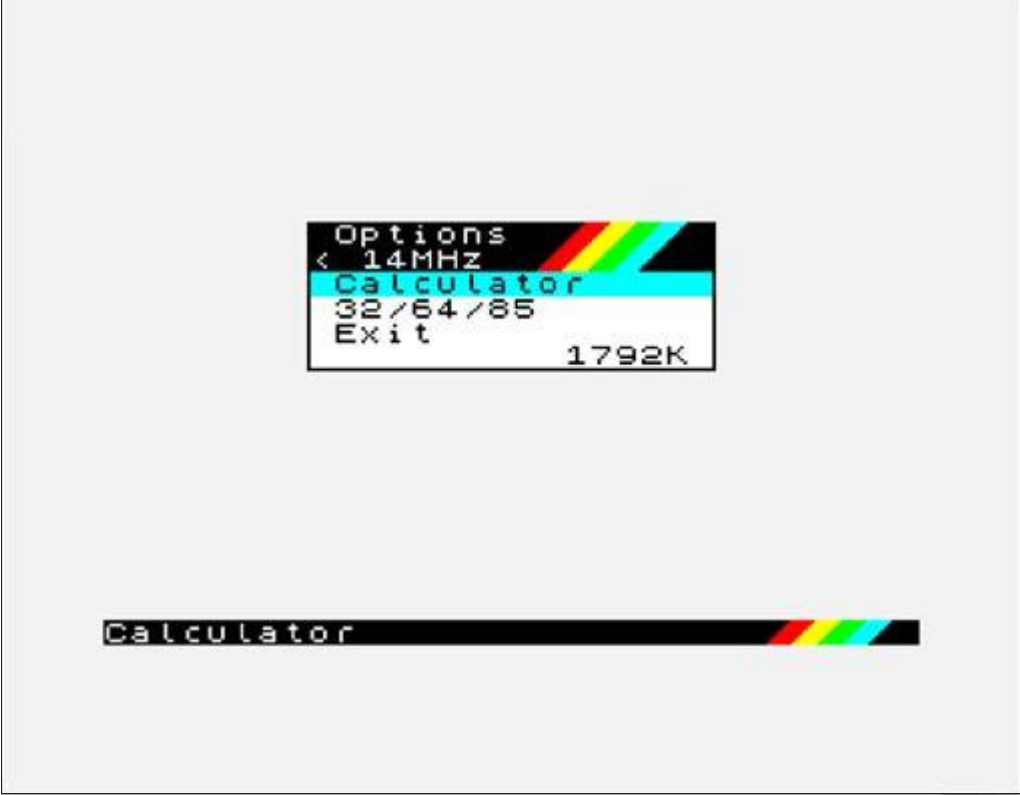
 Options
< 14MHz
 Calculator
 32/64/85
 Exit
           1792K

Calculator
Fig. 55 – Calculator Options Menu
Select the Exit option to return to the opening menu. If you were working on a NextBASIC program before you started using the calculator, then you may return to the program by selecting the NextBASIC option. (If you wish to continue using the calculator, then select the Calculator option).
ZX Spectrum Next User Manual, 3rd Edition (ISBN 978-1-5272-5496-1), written and illustrated by Phoebus R. Dokos. Copyright © 2020-2024 Phoebus Dokos / SpecNext Ltd. Licensed under CC BY-NC-SA 4.0. This is a transcription and can contain errors; check any doubt against the printed page.